How to Make a Bulin47 AI Video
To make a Bulin47 AI video, upload one clear photo to the generator on the home page, choose Standard 480p or HD 720p, press Make my video and download the 15-second vertical MP4 a few minutes later. This guide covers which photo works, what each setting does and how to fix a poor result.
Last updated:
Step by step: how to make a Bulin47 AI video
The whole process is five short steps and you never write a prompt. The AI replaces the man in the middle of the template with the person in your photo.
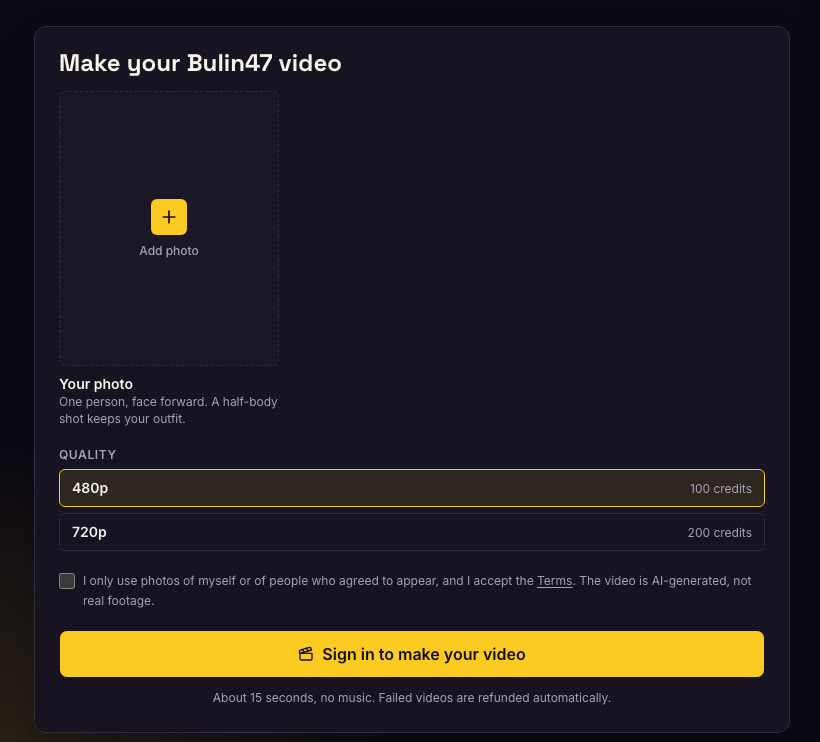
- 1
Choose one clear photo
Pick a sharp photo of a single person looking at the camera, half-body if you can, because the outfit in your photo comes along.
- 2
Upload it on the home page
Drop the photo into the generator. JPG, PNG or WebP, up to 8 MB and at least 300 px on each side.
- 3
Pick the quality
Choose Standard 480p for 100 credits or HD 720p for 200 credits, then tick the box that says you may use the photo.
- 4
Sign in and press Make my video
Sign in with Google or email. Rendering takes a few minutes and you may close the tab, because the clip is saved in My videos.
- 5
Download and add the sound
Download the MP4 and add the trending sound inside TikTok, Instagram Reels or CapCut.
Which photo works best
The model copies the face it sees, so the photo decides most of the quality. A good photo costs nothing and saves a retry.
| Good | Poor |
|---|---|
| Front-facing, or turned a quarter | Side profile or looking away |
| Even light on the whole face | Hard shadows, backlight, flash glare |
| One person in the frame | Group photos, because the wrong person may be swapped |
| Face and shoulders visible | A tiny face in a wide landscape |
| Plain or simple background | Busy patterns that can leak into the video |
Standard 480p or HD 720p
Standard 480p costs 100 credits and HD 720p costs 200. Both are vertical 9:16 and about 15 seconds long. Standard looks fine on a phone screen and is the right choice for a first try. HD is sharper if you plan to post on a larger screen or crop into the frame.
Credits are taken when a render starts and returned automatically if it fails, so trying Standard first never costs more than the clip you keep.
What to do when the result looks wrong
- The wrong person was swapped: crop the photo to one person and try again.
- The face looks soft: use a sharper, brighter photo with the face turned toward the camera.
- Glasses or a hat changed the face: try a photo without them.
- The render failed: credits are refunded, so check the photo size and format and press the button again.
How to add the sound in TikTok, Reels or CapCut
Videos are made without the original song because it is copyrighted. Upload the downloaded MP4 to TikTok, Reels or CapCut and pick the trending sound from their own library, which has the right to offer it. Keep the volume of the sound under the clip's beat so the moves still land.